Category: Debwork Blog

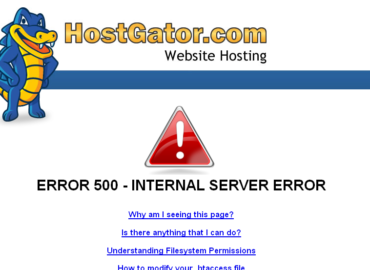
  • Hostgator PHP update to 5.4 gives Internal Server error 500

    Hostgator PHP update to 5.4 gives Internal Server error 500

    Some WordPress plugins require you to advance your website from 5.2.xx. If you don’t you might get the WHITE SCREEN OF DEATH which is harrowing.

    Hostgator’s Support site (this page)  gives the advice to modify .htaccess as follows:

    “PHP 5.4 is available on all Shared and Reseller hosting accounts by adding the following code to your .htaccess file:”

    • # Use PHP 5.4
      AddType application/x-httpd-php54 .php

    This works about 50% of the time and the other sites give Error 500 INTERNAL SERVER ERROR. yikes!

    To upgrade then requires an online chat call with Hostgator. They are awfully nice about helping with it.  But today I was told that PHP 5.4 is NOT on all servers. If you try installing 5.3 instead you might have better luck and avoid the 20+ minutes a chat session can take.

    • # Use PHP 5.3
      AddType application/x-httpd-php53 .php

    Where do you put that? At the top of the file will do nicely.

    It’s odd that one of my NEW clients – installed in 2013 – was running on 5.2 – kind of disappointing, ‘gator.

    BTW for Bluehost you can update via php.config but that’s another story.
  • cPanel 301 redirects not working for WordPress

    cPanel 301 redirects not working for WordPress

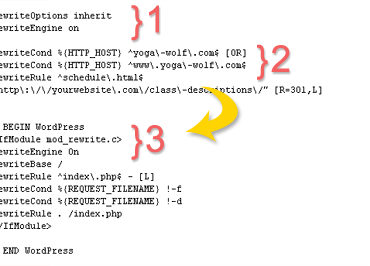
    Like many hosts, Hostgator provides cPanel to control your website. Included in cPanel is a nice tool to add 301 permanent redirects. These are added to your .htacces file for you – nice. This is handy for many reasons but I commonly need it when converting an HTML site to WordPress.

    How long should it take 301 redirects to work on a WordPress website? It should work right away but it will take Google awhile to catch up.

    The problem:  Sometimes the 301 permanent redirects works, sometimes they do not.

    The solution:  Make the page redirects appear BEFORE the WordPress setup (see featured image above). And be sure ReWrite Engine is turned on.

    A simple fix to get your redirects to work on Hostgator and other web hosts.

  • Fix: Dreamweaver FTP Error NetworkSolutions & GoDaddy

    Fix: Dreamweaver FTP Error NetworkSolutions & GoDaddy

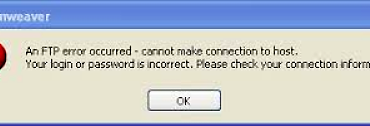
    Two clients signed up for 2 different web hosts, and Dreamweaver had a problem with FTP for both. Many forums blame it on Dreamweaver, but for me the fix was to reset the FTP password.

    Web host documentation says:

    FTP Password: Your hosting account password.

    It does not mention going into the FTP user and setting it. For NetworkSolutions, I simply re-entered the hosting account password. For GoDaddy I tried the same, but it claimed that it was not secure enough. Adding a punctuation character at the end solved the problem.

    I searched for help from many forums and blogs but found no mention of this simple fix for getting Dreamweaver (CS4) FTP to work.

  • How to recover pages from a bad backup

    How to recover pages from a bad backup

    Everyone makes mistakes. But what happens when you go to the backup and you can’t recover your web pages?

    I had a situation recently where I lost some of my WordPress blog pages. These are pages that I would be hard pressed to rewrite because I wrote them to remember my steps and to help others. Things that I do not have to do on a routine basis as a web designer.

    Then I ran into Google cache pages which are saved on Google much longer than you can imagine!

    Here’s what you can do:

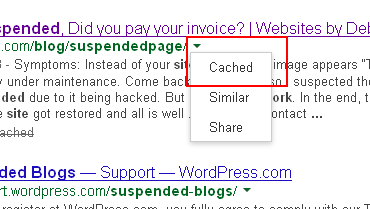
    • Search for your page in Google. Use as much of the URL as you remember. Look for the little triangle symbol at the end of the URL (see image at the top of this post)
    • Click on Cached page and the page will come up with a banner on the top. Notice you can then recreate your page with the same URL which is helpful for SEO and to minimize 404 error pages.
      how-to-recover web pages from-bad-backup
    • At this point you can save it locally from your web browser.
      Wordpress how-to-recover-from-bad-backup
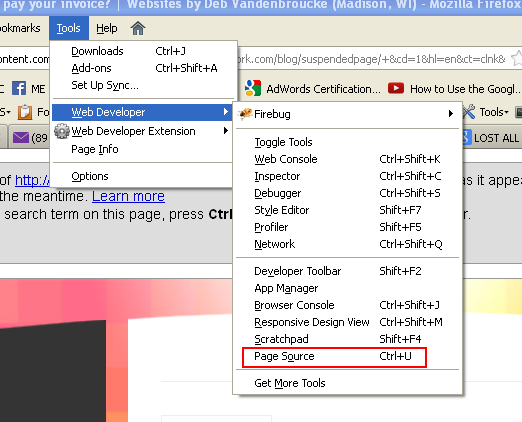
    • You can then recover your HTML from the local page or from the cached version using Firebug.
      BackupBuddy would not recover when I wanted to move from WPML to single site

    You might want to go to Google Webmaster Tools and tell them you fixed the problems.

    And this post is quite helpful in locating your pages. I wish I would have had a few of those tips when I was going through the process:  More on Google Cache pages

    Best of Luck to you!

  • WP Update Time Eaters

    WP Update Time Eaters

    Each year WordPress does a survey and asks what you least like about WordPress. I have been putting the same response which is keeping themes, plugins in synch with WordPress versions. Here is a ‘work flow’ example from something that occurred over the last couple of days.

    All I wanted was a new look for a website:

    • Paid for and installed a new WordPress theme
    • Tried the Live Preview – navigation did not work
      (Dashboard>Appearances>Themes)
    • Loaded theme onto a test site to try for real – yep, navigation does not work
    • Submitted  support request to theme maker
    • wait
    • Answer “please update everything then we will help you”
    • Downloaded new theme version to my computer, just came out this week
    • Updated WordPress theme
    • Tested Site – navigation still doesn’t work
    • Have to update WP version before support will investigate
    • This is for WPMU site, checked to make sure other site themes are ok for WP 3.6
    • Needed to Backup all site – !BackupBuddy no longer works for WPMU
    • Research, research
    • sleep
    • More research – looking for another backup solution
    • Installed 2 new backup plugins
    • Backed up site(s) in many ways
    • Updated WPMU network to 3.6
    • Test site – holy cow – IT WORKED!

    Now it’s time to really get to work.  I ‘simply’ added a new design theme and now it’s time to get it to look good.

  • BackupBuddy broken for MultiSite WPMU

    BackupBuddy broken for MultiSite WPMU

    Whoa, iThemes has disappointed us in a big way. BackupBuddy no longer works for WordPress MultiSite. In fact, it is not even showing up in my dashboard.  I receive emails from iThemes all of the time bragging about the latest news. But I did not hear one peep from them about BackupBuddy and Multisite WPMU no longer being supported.

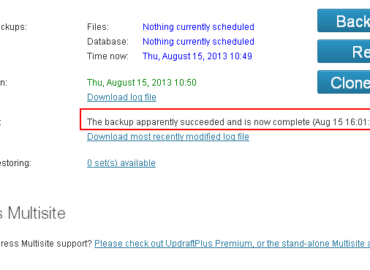
    After reading what I could find – which was NOT MUCH. Installed and unInstalled a few plugins and found that UpdraftPlus might be the answer and why limit it to one backup – there is also BackWPup.

    UpdraftPlus

    I installed it, backed up my WPMU sites independently with UpdraftPlus.  Few settings, easy peasy.

    BackWPup

    I installed it, looked over a lot of settings, changed some, then backed up the entire ‘network’.

    For both free plugins there are Pro/paid versions and add-ons that might be good to use in the long run. I definitely need to understand the restore better.  For today it feels good that my sites are tucked away and at least to know what learning curve to jump on. One of these fine products deserve my money but it hurts to whip out that credit card since my investment with BackupBuddy was not insignificant.

    BackupBuddy is a fantastic product. I miss some of the features like “check for malware” and whatnot that it provides. I can  understand a company backing off of a promised feature, but it was very bad form to do it so quietly that it took a good client by surprise. Also the dashboard should give me some sort of clue as to what is going on with the plugin!  Makes you feel like you lost your mind… “didn’t I use this before?”

    This is what eats up our time, people! Surprises to plugins and themes are not fun.  But a big thanks to UpdraftPlus and BackWPupfor being out there! yah!

  • Site Suspended, Did you pay your invoice?

    Site Suspended, Did you pay your invoice?

    Symptoms:

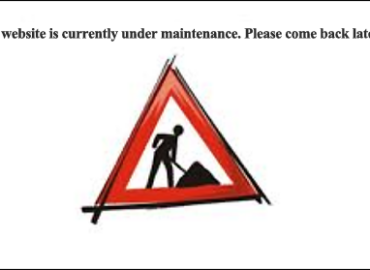
    1. Instead of your site showing, an image appears “This website is currently under maintenance. Come back later!”
    2. Your URL is being forwarded to http://YOURURL.com/cgi-sys/suspendedpage.cgi

    Diagnosis:  Invoice not paid to Hostgator web host.

    This interesting anonymous graphic slapped on a client’s site last week.

    I am the site admin and I did not put the site under maintenance. It happens to be one of the few sites whose owner does not want WordPress updated for some possibly good reasons.  The site is on WordPress 2.9.2 and at this writing, I am updating websites to 3.5.2. Thus and so I suspected the site could be suspended due to it being hacked. But no… it is simply a bill overdue.

    Dear Hostgator,

    I think you have great service but couldn’t you put a more helpful message on this website? How about adding a gator logo? How about some kind of hint or link to pay the invoice? It would actually resolve the problem faster.

    Thanks,

    Debwork

    In the end, the client paid the bill, the site got restored and all is well …


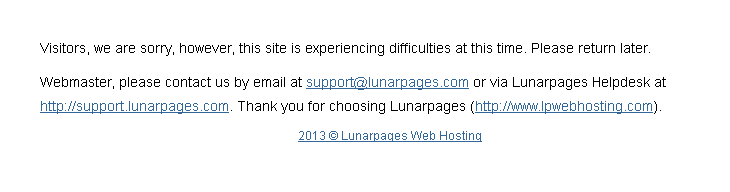
    New Addition: This is what your site looks like on LunarPaqes if you do not pay your hosting bill:

    What you see if you don't pay your LunarPages hosting bill
    A sign that your web hosting bill is overdue.
  • How to Add or Update Email Signature Yahoo

    How to Add or Update Email Signature Yahoo

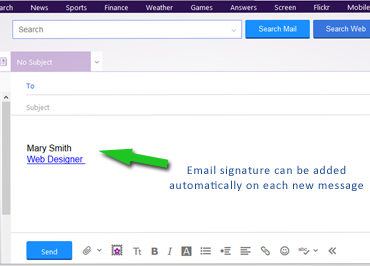
    Yahoo email went through an update in 2013. By request from a web client, here is how to Update or add an email signature with a hot link.

    1. Log into Yahoo Mail
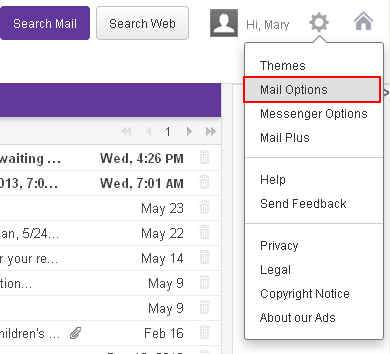
    2. Hover over the gear link in upper right and choose Mail Options:
      New Yahoo email menu
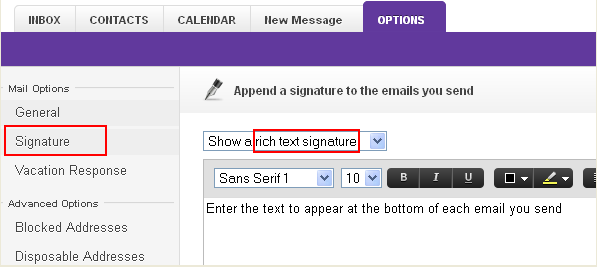
    3. In left menu choose Signature.  If you want a working link chose “Show a rich text signature“:
      Trick to make a hot link to your yahoo signature at the bottom of email
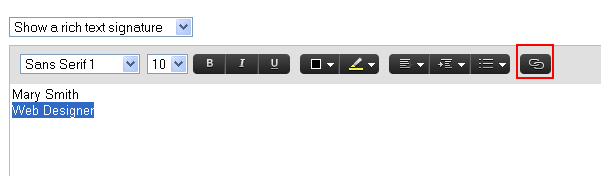
    4. Compose your signature. (The default text seems huge so you might want to adjust the font size. )Highlight the text that you want to be a hot link and click the link icon:
      Add hyperlink to Yahoo email signature
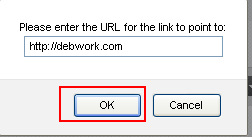
    5. Add your URL  and click OK
      the URL enter screen - yahoo email signature
    6. SAVE the signature
      SAVE button for yahoo email signature
    7. Compose a new email – your signature should be showing. If it is not, go back and SAVE the signature again (this happened to me). Two times was the charm.Yahoo email signature should show when you are composing the message
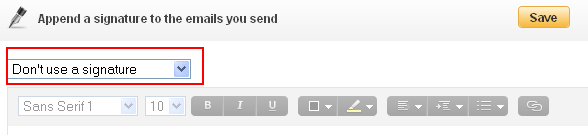
    8. To DELETE the signature, it is not good enough to remove the text and save, you have to chose the “Don’t use a signature” before you SAVE.You can't just blank out signature, you need to use this setting then save


  • Gmail Signature Add Icons No Border

    Gmail Signature Add Icons No Border

    How to Add Icon links to your Google Signature

    and remove the horrible blue border.

    I pieced this together from various sources.  Google does not provide a way to add html to your gmail signature. If you are not a geek who uses FireFox Firebug, you may as well stop reading now. If you just want an simple text signature with textual link (hotlink, hyperlink) – here is lesson #1.

    The problem: Thick blue border around your social icons in Gmail Signature:Google CSS adds 4 or 5 px border around images in gmail signature.

    #1 ADD ICON IMAGE to your Google Signature

    This is pretty straight forward except you need to find an image to link to and it would be best if it was on your own web host. Click the image link, add the URL to the image.

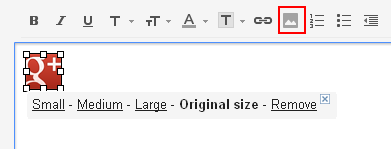
    gmail signature add image tool

    #2 ADD LINK to the icon in your Google Signature

    The only tricky part to this is that the icon image must be clicked so you can see the small-medium-large choices underneath it and sometimes the outline in my screenshot does not show. If small-medium-large is not showing, the link tool will not work. Click on image so you see small-medium-large then click on the link tool above and add the URL link.

    Shows how you need to see small-medium-large under image in order to attach the link

    #3 REMOVE BORDER from the image in your Google Signature

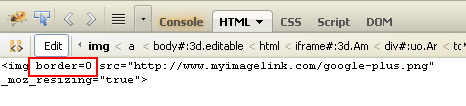
    Click on image so you see small-medium-large then click on the linkvtool above and add the URL link. Turn on FireFox Firebug>edit the IMAGE (css on  the <a> will not work.) and added “border=0″

    Shows how Firefox Firebug looks when you are editing

    #4 SAVE and TEST

    You will be surprised that this works (April 2013) because for some reason Google will save the Firebug html change even though it does not provide a way to do it within its own tool. Of course things change pretty fast around here.

    Good luck.

  • Paypal Phishing

    Paypal Phishing

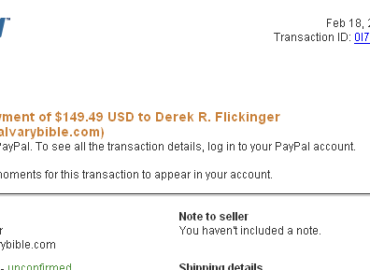
    I’ve been getting a slew of these Paypal Phishing spam emails. It said I have purchased something.

    Of course the link does NOT go to Paypal.

    If you wonder what is going on in your account – go to the main site, do not log in via an email link.