Author: WebDeb

  • Third Street Leather and Shoeworks

    Third Street Leather and Shoeworks

    Screenshot of WordPress landing page
    thirdstreetshoe.com

    thirdstreetshoe.com

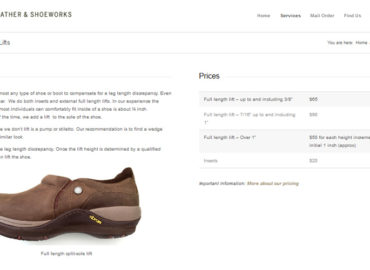
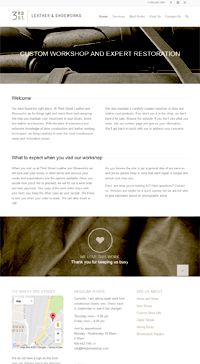
    When Eastside Shoe Repair moved to Third Street in Madison, they changed their name and rebranded their message. The evolution from “quaint cobbler shop” to “professional leather work and repair” required a new website design and focused content.

    The primary goal of the website is to let clients know what types of leather work they do (and do not) perform, in addition to giving the website visitor a sense of how much it will cost.

    There are several forms on the website to ask questions and for mail-in repair orders. In 2017 the cobbler needed to reduce the backlog of repair requests. I added a new question on the form that asks if previous work was performed and if the answer is negative, the form hides itself with a kind message to look for another resource for their needs.

    By the way, I was the cobbler’s client before she became mine.

    Client: 2013 – 2019 Peg retired from shoe repair but is still a client. See MooBuzz
    Redesigned: 2015 (see previous)
    Referred by: Self-referral – this is repeat business from happy client
    Responsive? Yes (Enfold Theme)
    SSL? Yes

    [testimonialswidget_widget tags=”zzESR,zzMoo” random=true paging=false]
  • Point domain from html site to WordPress site

    Point domain from html site to WordPress site

    These notes are a very pared down version of how to make a WordPress site in a subdirectory become the main domain site. I do this for my new client sites a couple of times a year. Perhaps not a full blog but more a jog, a memory jog (recipe) for the next time. Hope it helps anyone that does not need a long preamble.

    Scenario:
    Client has live html site (somesite.com)
    and a new WordPress website is ready to go in a subdirectory (somesite.com/aWordpressSite)

    Mission: Go-live
    Domain (somesite.com) should direct to WordPress site instead of the html site.
    Site visitor is unaware of the subdirectory AnotherWordpressSite

    Clear your head, think through, prepare:
    Read the WordPress Codex
    Read this nice post
    Read my post about 301 redirects. To make a list of pages use the Site Map Generator and download the urllist.txt.

    Take the steps:

    1. WordPress Dashboard > Settings > General > Site address URL. Change your site’s root address (somesite.com).
    2. Copy (not cut) index.php file from the WordPress site (somesite.com/aWordpressSite/index.php) into the root directory (somesite.com/index.php)
    3. Edit that moved file to include the subdirectory (somesite.com/index.php)
      Check it 2 or 3 times to make sure you did it right:
      require('./aWordpressSite/wp-blog-header.php');
    4. Try viewing it
      • Not ok? Resave Permalinks (Remember Admin login URL does change)
      • Delete or change the name of index.html (remember to move the .html files to a new folder so they don’t get in the way)
      • View site. Not ok? Move .htaccess to same place as copied index.php
      • View site – don’t worry, it will be fine now.

    SEO

    • Set up redirects for old pages.
      The old pages are going to bounce to 404 error page so set up 301 redirects for a better user experience (see 301 redirect troubleshooting, .htaccess invisible in Dreamweaver )
    • Turn on SEO plugin if it is not already active.
      Other plugins to check on while in the neighborhood: Backup and Security.
  • Daniel R Spirer, Jeweler

    Daniel R Spirer, Jeweler

    Screenshot of Jewelery Website
    spirerjewelers.com

    spirerjewelers.com

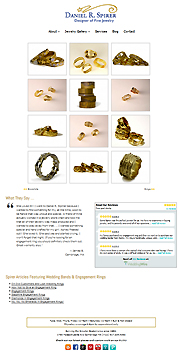
    Primarily to make his website responsive to mobile devices, this HTML website was moved to WordPress. This Boston-area jeweler was quite happy with the design of the HTML site, so it was used as a template for the updated version. The site is very much image-based, so pictures are now organized into portfolio posts. The titles and tags provide several opportunities to catch search engine attention. Gallery images can be posted to social media individually or opened in a lightbox slideshow.

    Responsive? Yes indeed (Striking theme)
    Client: 2012 – 2020 (see previous)
    This is repeat business! Originally referred by client: Jacob Mills

    [testimonialswidget_widget tags=”zzSpirer” random=true paging=false]
  • How to delete post and page revisions (and arrange edit view)

    How to delete post and page revisions (and arrange edit view)

    2019 update: Thin Out Revisions plugin discussed here has not been tested since version 4.2 so I can no longer recommend it. There are WordPress settings and plugins (Optimize Database after Deleting Revisions) that will delete “all revisions” prior to a certain date, but not a plugin where you can choose which revision to delete. I’m sad about it since some clients cyclically revise content and causes more revisions to be saved then need be.

    Debwork clients can delete revisions to keep their sites smaller for backups, and there are some claims that loading time is faster. If you can already see the revisions box on your edit view, skip section “How to: delete post and page revisions”.  The first part of the article explains how to show / hide edit boxes on your edit page view.

    Arrange edit view in WordPress

    WordPress allows each user to arrange the edit window for both pages and posts per their preference. Sometimes after software updates, preferences get “reset” so it is good to understand how to do-it-yourself even if if you want your webmaster to set up your WordPress page view. Each feature you can edit is in a box.

    The following are under your control:

    • Hide/ Unhide boxes
    • One or two-column layout
    • Move boxes around
    • Toggle boxes open and closed

    #1 How to: show or hide WordPress edit feature boxes & columns

    • Go into a post or page that has been published for awhile.
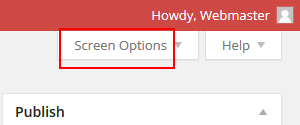
    • In the upper right corner by your name, click on the “Screen Options” tab. This toggles everything available on the edit page.
      screenshot of screen options tab on wordpress edit window
    • Check and uncheck boxes to show or hide them. Debwork clients should turn on “Revisions” (more on that below)
      screenshot of opened screen options tab. boxes can be checked to show or hide edit boxes in wordpress
    • Note that you can also have a single column view or a 2-column view which is the default.

    #2 How to:  move boxes around

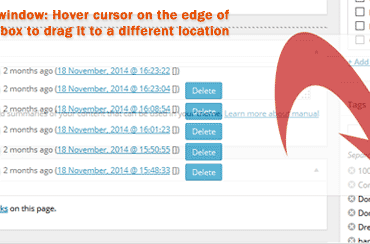
    • Hover your cursor in the corner of an edit box (see featured image at the top of this post)
    • The cursor changes to a cross which tells you  you can click and drag the box to wherever you prefer. For example, you  might want SEO edits right under the primary edit window to remind you to address SEO titles and descriptions each time.

    #3 How to: toggle features opened / closed

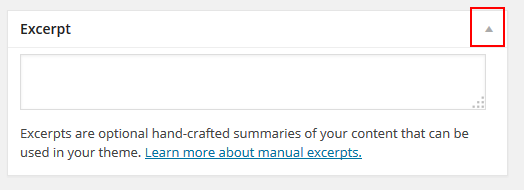
    • If a feature is rarely used , it can be “shown” but made less obtrusive by clicking the gray arrow in the upper right corner of the box.
      edit-page-close-toggle

    How to: delete post and page revisions

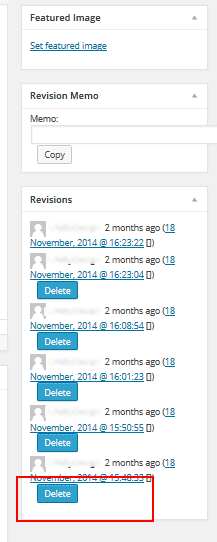
    Debwork DIY clients can delete their own revisions to keep their sites smaller for backups. The plugin Thin Out Revisions provides this function.  Use the instructions above to show the revisions box on the edit page if it is not already showing. Suggested place to tuck the delete revision edit box is at the bottom of the right column.

    screenshot of the area on in wordpress where you can delete old revisions to keep site smaller for backupsTo delete a revision,

    • Choose the revision to delete, click  the delete button.
    • WAIT for it to finish before deleting another.
    • Click OK
    • Ignore the opportunity to “prevent this page from displaying additional dialogs”

    How to: add a note to your revision

    Using revision memos makes it easier to revert back to something that might be used again and also indicates to think twice before deleting.  If you think you will go back to certain revisions, be aware of the ability to add revision notes.

    Example: some sites have seasonal page displays “spring semester”, “winter semester”
    Example: some sites have displays of a page for when they are away “on vacation”, “off vacation”

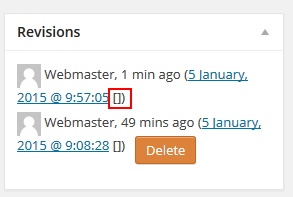
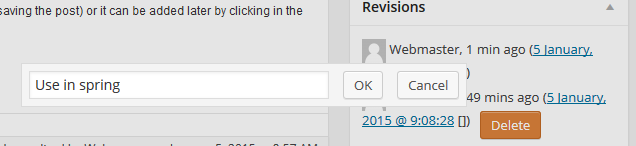
    Click the [] brackets after the revision, and a window will appear to add a revision note. Click ok when done.

    screenshot of the brackets. click this to add a change note. WordPress Revisions

    click the brackets to get revision memo edit window


  • Blog for work travel was supposed to be on WordPress.com but needed more ‘pretty’

    Blog for work travel was supposed to be on WordPress.com but needed more ‘pretty’

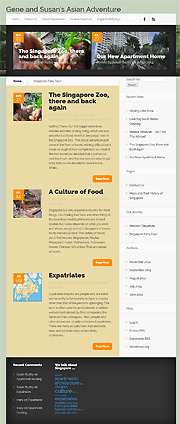
    Screenshot of Susan Buzby's blog - RTW
    Good Sites for Good People

    GeneandSusansAsianAdventure

    My friend got a contract to work in Singapore and thus and so off they went. Gene and Susan decided to document their adventure using a blog. Naturally, I confirmed that this was a great idea.

    This was supposed to be a WordPress.com website. What’s the difference? WordPress.org websites are self hosted (you have to pay for a web host and maintain it yourself) whereas a WordPress.com site is hosted by WordPress with no maintenance required but the themes and features are limited. My friends are design sensitive and did not find a WordPress.com theme that well represented them so I decided to host a WordPress.org blog for them on debwork.com.

    Unlike a lot of designers, I do not resell hosting to my clients. For one thing, reselling does not save them money. More importantly, it also ties clients to my services making it uncomfortable to split if another webmaster is desired. It is my policy to not be a burden if a client wants to move on to use someone else. Admittedly, this has rarely happened but when it has, it is all very civilized.

    Client since 2014, friends since – 1990’s!
    Responsive? Yep – Nimble Theme by Elegant Themes

  • Ward Paxton ~ Voice Talent

    Ward Paxton ~ Voice Talent

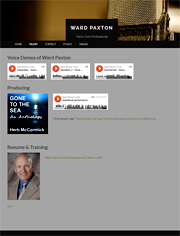
    Screenshot of Ward Paxton's WordPress.com site has soundcloud and sample of audio books (website maintenance)
    wardpaxton.com

    wardpaxton.com

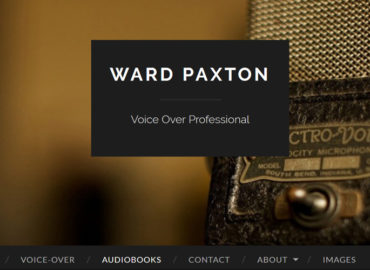
    Ward Paxton reads books for the likes of Audible.com! I am a big audio book fan so was happy to help with his WordPress.com site. Most of my clients are self-hosted WordPress.org. There are plus and minuses to everything.

    Ward demonstrates his voice talents with Sound Cloud. He also has an audio studio where he can produce voice for himself or others. A lot going on in this compact little website. My job was help with the styling.

    Responsive? somewhat
    Client since: 2014
    Problems solved: header size, styling, page length, content edits
    Referred by: search engine

    [testimonialswidget_widget ids=”4522,1929,1863,1864″ random=true paging=false]
  • Portfolio Picture order in Strikingr Theme (one experience)

    Portfolio Picture order in Strikingr Theme (one experience)

    Striking Mutliflex theme is fantastic (see sites used) but I had a problem figuring out how to get images in the exact order preferred by the website owner.

    Wanted:

    Exact placement of pictures in portfolio display

    Parameters at play:

    • ids select items on id basis comma seperated (optional)
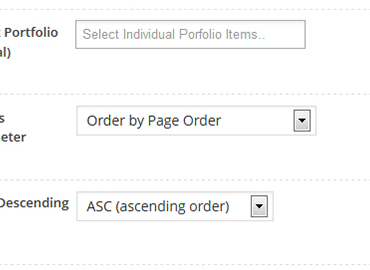
    • orderby : no, page, author, post-id, title, date, random, parent-id, nr of comments, modified date (optional)
    • order : DESC, ASC (optional)
    • (for full list see Striking shortcode documentation)

    Shortcodes that did not work.

    Striking theme order number for portfolio display

    #1 Order By Page Ascending:

    [portfolio sortable="false" cat="rings" current="rings" height="180" column="4" title="false" desc="false" more="false orderby="page" order="ASC">]

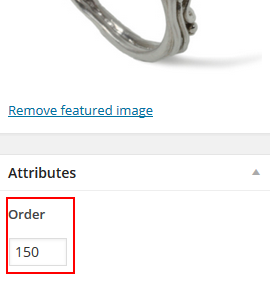
    The idea for this is to add an order number (sometimes referred to as “page order number” in the Portfolio Item. It looks like this:

    Aside Suggestion: use increments of 10 when you first set it up so it is easier to change the order later.

    #2 List of id numbers in the order desired:

    [portfolio sortable="false" cat="rings" current="rings" height="180" column="4" title="false" desc="false" more="false" ids="237,248,275,266,267,249,252,265, (etc)"]

    Striking shortcodes that did work:

    #1 Fix for order by page Ascending:
    Remove the parameters orderby=”page” order=”ASC”! (I don’t know why but now it works)

    [portfolio sortable="false" cat="rings" current="rings" height="180" column="4" title="false" desc="false" more="false"]

    #2 Fix for List of id numbers:
    There is no problem with the shortcode I used but the misconception is that it displays in the order written in the shortcode. The ids list is “what to include” but does not dictate the order so the attribute “order” works in conjunction with the ids list. Of course if the list of ids is the entire category. This is just extra work.

    [portfolio sortable="false" cat="rings" current="rings" height="180" column="4" title="false" desc="false" more="false" ids="237,248,275,266,267,249,252,265, (etc)"]

    Here is the help forum discussion on this topic. We were having a small communication difficulty so I wrote it up my findings here.

    Link to where you can purchase Striking
    btw I’m not getting anything out of recommending it, no residual deals here.

  • Kathleen Watson ~ Author, Editor, Speaker

    Kathleen Watson ~ Author, Editor, Speaker

    RuthlessEditor.com

    Kathleen Watson is an editor, author and speaker. She had a blog installed that required some deeper knowledge of best practices. The installed WordPress theme was 2 years abandoned and WordPress was out of date. Since she enthusiastically liked her HTML website, the blog was re-designed to integrate with that look. We have occasional training sessions to further her own knowledge and abilities about SEO and posting her blog articles.

    It’s with a heavy heart that I have to report that my client Kathleen Watson passed away due to a drunk driver. I just haven’t had the heart to remove this page from my web portfolio quite yet.

    Responsive? Yes (TwentyTwelve theme)
    Client: 2014 – 2020
    Problems solved: Web Design, Software Updates, Backups, SEO
    Referred by: Josh Wimmer

    [testimonialswidget_widget tags=”zzWatson” random=true paging=false]
  • Dolci Biscotti

    Dolci Biscotti

    DolciItalianSweets.com

    I was the baker’s client before she became mine. I bought packages of cookies then had the idea to serve them at a sculpture opening. We talked occasionally and after she experienced one failed attempt at a web project, Sandy Hunter hired debwork.com to create her web presence.

    This is a WordPress site. Instead of blogging articles, Sandy keeps current a gallery of custom bakery items that are totally fun to look through. I also administer the associated Facebook page and Twitter stream.

    Responsive? Yes. Striking Multiflex Theme
    Client since: September 2011
    Redesigned: 2014
    Chow theme was pretty but not responsive to devices sizes. The theme authors abandoned maintenance and it fell behind with WordPress. This site was moved to a new responsive theme in 2014 – but we decided kept most of the great look we developed.

    [testimonialswidget_widget ids=”4640,1652,1651,1326,1158,1327,1329,1328″ random=true paging=false]
    Sandy Hunter and Deb Vandenbroucke enjoying the day
    Good Sites for Good People
  • BackupBuddy Error #8329754  ERROR_EMPTY_FILE NON_CREATE_MODE

    BackupBuddy Error #8329754 ERROR_EMPTY_FILE NON_CREATE_MODE

    There is no error #8329754 documentation on BackupBuddy but here is what worked for me:

    The Problem:

    Error #8329754. Error retrieving fileoptions file `..wp-content/uploads/pb_backupbuddy/fileoptions/m5g6068f4h.txt`.

    Error details `ERROR_EMPTY_FILE_NON_CREATE_MODE`. Error information & troubleshooting:
    http://ithemes.com/codex/page/BackupBuddy:_Error_Codes#8329754

    How nice of BackupBuddy to give us an error page – too bad it is not found.

    This worked for me:

    • Deleted 2 cache plugins (they were already deactivated but sometimes deleting helps)
    • Updated BackupBuddy plugin
    • AHA –  the license info was missing because I had changed plans – fixed that!

    Thus and so the problem might just be no license or it might have been a conflict with one of the cache plugins. Either way it’s bad form to not help us out. iThemes must know what is going on here.

    The backup was totally smooth after that.  Good Luck